How to Make Product Mockups That Convert
Baymard reports that 56% of users' first actions on a product page involve exploring product images, while 25% of e-commerce sites provide inadequate image resolution or zoom. That puts product mockups in the middle of the buying decision: shoppers use them to judge what they might receive, not just to admire the design. Baymard's apparel research makes the practical takeaway clear: build each image to answer a specific question about the garment, fit, print, or scale.
Table of Contents
- The Mockup Set That Makes the Sale
- Prepare the Print File Before You Mock Up
- Build the Full Gallery in AvatarIQ
- Make Light Scale and Color Look Real
- Export Sizes for Every Storefront
- Fix the Mockups Buyers Bounce On
- Launch the Listing While the Idea Is Hot
The Mockup Set That Makes the Sale
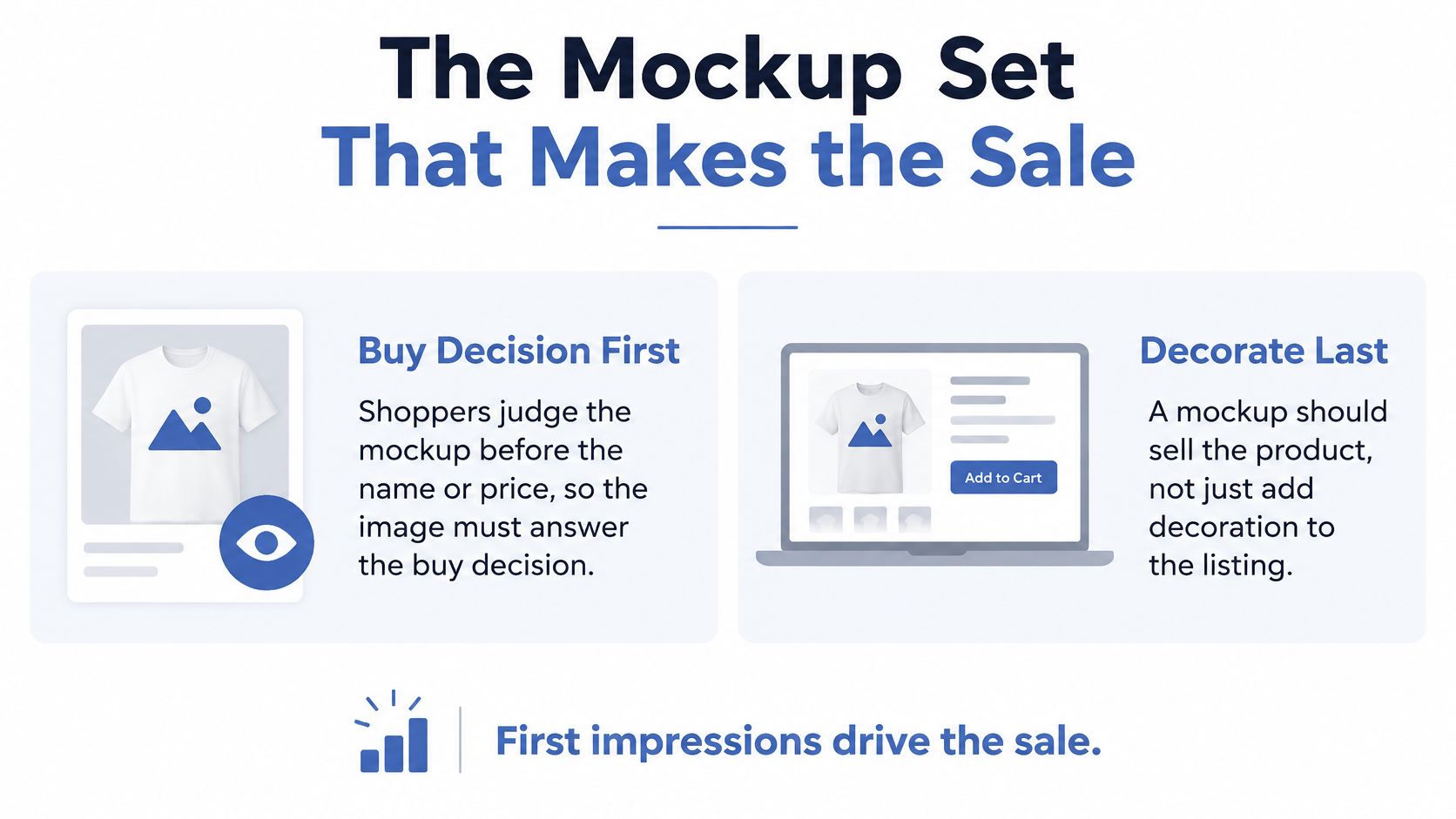
A buyer usually sees the product before they've read the title or price. Your first image needs to make the design and garment clear at a glance, then the rest of the gallery should resolve questions the front view can't answer. A polished image is useful, but an accurate image is what helps a shopper decide.
Baymard reports that 48% of apparel sites fail to show clothing on human models, even though model images help shoppers judge fit, length, and appearance on the body. Its apparel guidance recommends a flat product view, a worn-on-model view, and a detail crop. Build from those essentials, then add a back view when the product calls for it and a full-body image that makes scale easier to judge.
Five images every POD listing should include
| View | Shopper question | Must show | Pass test |
|---|---|---|---|
| Front product | What is the design and color? | Full garment, true blank color, print in the decoration zone | Design stays readable as a search thumbnail |
| Back product | Does the back or cut change the product? | Full back, hem, neck, and any back print | Same crop and lighting as the front |
| On-model | How does it fit a body? | Length, sleeves, side seams, silhouette | Pose doesn't hide a fit point |
| Detail crop | Is the print sharp and well placed? | Print edge, texture, fabric interaction | Clear when the buyer zooms |
| In-scale full body | How large are the print and garment? | Head-to-hem view or another clear size cue | Print scale matches the art file |
Start with the front product image. Show the full garment and keep the artwork within the decoration zone. If the design turns into an indistinct patch at thumbnail size, simplify the crop or choose a stronger view. The back view earns its place when there's back artwork, a distinctive cut, or a feature that changes what the buyer is getting.
The model view should show the hem, sleeves, and side seams without a pose hiding them. A detail crop then gives shoppers a closer look at print placement and how the art sits on the fabric. For the final image, include a clear size cue so buyers aren't left guessing: Baymard found that 42% of users try to infer product size from images.
One centered flat lay alone leaves fit and scale unclear. Artwork that's larger than the actual print area, or a mockup color that doesn't match the blank you'll ship, can also create a gap between the listing and the delivered shirt. For an additional perspective on product image planning, Online Brand Growth's product photography guide offers helpful context for structuring a product gallery. Lock the five-image set before adding extra lifestyle frames.
Prepare the Print File Before You Mock Up
A convincing mockup starts with a print file you can trust. Get the artwork, measurements, and garment color organized first, so you're not resizing by eye or rebuilding the gallery every time you add a colorway.
Set up a repeatable print spec
- Choose one design. Save it as a transparent PNG, with the artwork separate from any background.
- Set the print dimensions. Use the size you intend to produce. If your printer expects artwork at 300 DPI, prepare the file to that specification; a 10 to 12 inch chest print should be based on physical dimensions, not how large it happens to look on a screen.
- Measure the blank. Record the chest width, print height, and distance from the collar for the decoration area.
- Name the measurements. Add those three values beside the file name so every colorway starts with the same placement spec.
- Record the garment color. Note the exact blank color you plan to sell, because the product image should represent that garment.
- Inspect the edges. Check the artwork at 100% for halos, jagged lines, or stray pixels.
- Upload to AvatarIQ. Select the blank and color, then keep the artwork's original aspect ratio.
For a visual reference to an apparel graphic file, BEDHEAD's shirt artwork example can help you think about how a design is prepared for a shirt. If you're refining the graphic itself before mockup production, this guide to designing for print on demand can help you plan for the garment and print method.
Once the measurements are set, reuse them for each new colorway. A new garment size or cut may need a fresh check, but consistent specifications keep placement controlled and make the gallery quicker to rebuild.
Build the Full Gallery in AvatarIQ
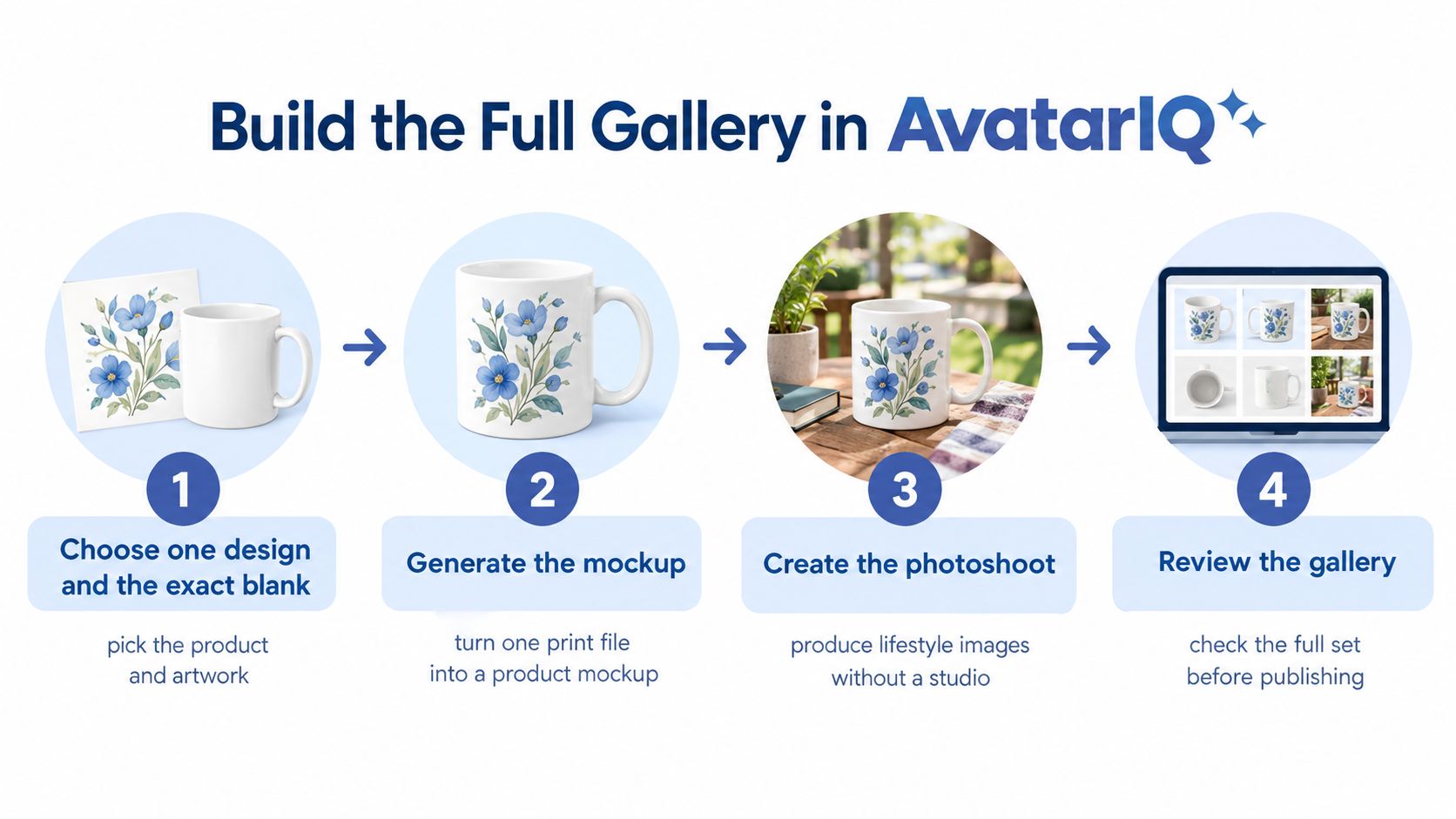
AvatarIQ lets you turn one print file into a product mockup and photoshoot-style images without setting up a studio. The important part is to choose the garment first and review each output against the print file, so a polished scene doesn't change what you're selling.
Seven checks from artwork to gallery
- Choose one design and the exact blank. Pick the garment style, fit, and color you'll sell, such as a black unisex tee. The check is simple: the selected blank matches the fulfillment product.
- Open AvatarIQ and generate the mockup and photoshoot. Start with the product you chose rather than mixing garments or colors. Confirm the output shows that same product.
- Place the artwork inside the decoration zone. Keep its original aspect ratio and align it to the print specifications you recorded. Check that the art hasn't been stretched or shifted.
- Create the five gallery views. Make a front view, a back view when the print or cut calls for one, an on-model view, a detail crop, and an in-scale full-body frame. Confirm each image answers a distinct shopper question.
- Check the thumbnail and full-size view. The design should remain recognizable when small, and the full-size image should show the print clearly. Make sure the garment color is right and that sleeves, hem, and side seams remain visible.
- Compare the gallery to the source file. Check print length, placement, and fabric appearance against the blank and art file. Correct any visible mismatch before exporting.
- Export a consistent set. Use the same crop and lighting across colorways, name each file by design, color, and view, and set the clear front image first. The final check is that the gallery looks like one product listing, not a collection of unrelated shots.
Keep those steps practical rather than chasing a perfect scene. The useful output is a gallery that makes the product easy to evaluate. One focused session can leave you with a complete set ready for listing, while the idea and energy behind the design are still fresh.
Make Light Scale and Color Look Real
The fastest way to make a mockup feel unconvincing is to make the print look pasted on. Check light, perspective, scale, and color in that order, then keep the same visual treatment across the color options.
- Light: Use a soft source from slightly above and to one side so folds read as fabric, not flat gray shapes. Keep the shadow direction consistent across colors.
- Perspective: The chest plane angles toward the shoulders. Make sure the print follows the garment's shape and doesn't sit on the fabric like a rigid rectangle.
- Scale: Compare the print to the decoration-zone measurements, not a vague impression. A typical adult chest print is about 10 to 12 inches wide, so check the print spec before approving the image.
- Color: Review the blank in neutral light. Reject a frame that pushes black toward navy or sand toward orange.
A 2024 Harvard Business School report described a retailer's image-and-text search refinement test: 5.5% of users used narrower queries suggested by the visual-text feature, compared with 1% in the control group. Six months later, the test group completed 1.6% more orders and spent 3.2% more on products than the control group, according to the Harvard Business School report. For a POD listing, the practical lesson is to make the garment, print size, and real-world context clear enough to evaluate.
For more ideas on making product images work together, these product photography tips can help you think through how each frame supports the buyer's decision.
Polish never outranks accuracy. A buyer who can judge fit, scale, and color quickly has a clearer path to adding the shirt to the cart.
Export Sizes for Every Storefront
A sharp image can still look soft after upload if the file is too small or the crop leaves no room to inspect the product. Baymard's large-scale e-commerce testing found that 25% of e-commerce sites provided images insufficient for visual product exploration and evaluation. It also identified low resolution as an issue at 14% of sites and insufficient zoom at 11% of sites, according to Baymard's research on image resolution and zoom. Export for the storefront, then check the actual uploaded image on a phone-sized screen.
Export sizes for the main POD storefronts
| Platform | Recommended pixel size | Background | File | Listing rule |
|---|---|---|---|---|
| Etsy | At least 2000 px on the shortest side | Clean or simple lifestyle | JPEG, sRGB | Up to 10 photos; image one is the search thumbnail |
| Shopify | 2048 × 2048 px | Same setting on every color | JPEG or WebP, sRGB | Square crop keeps the collection grid even |
| Amazon | About 2000 px on the longest side | Pure white on the main image | JPEG, sRGB | Main image is the product only, with no text or badges |
Keep a higher-quality master file, then export a storefront-ready version. Use descriptive filenames that identify the design, color, and view, such as summer-tee-black-front, so a later colorway doesn't get mixed up with the first one.
Consistency matters more than a clever crop. Keep the angle, framing, and lighting stable across color variants so buyers can compare the garment itself. For a Shopify store, this guide to Shopify image sizes can help you plan assets for product pages and collection grids.
Before publishing, reduce each file to phone-thumbnail size. The design should still read as a design, not a smudge. Then open the full image and check that the print details remain sharp when zoomed. If the first image needs a caption to explain what the product is, choose a clearer front view and export again.
Fix the Mockups Buyers Bounce On
A mockup is a fit, scale, and accuracy check, not just a polished image. If the design turns muddy in a search thumbnail or the garment looks different from what arrives, shoppers have less reason to click or buy. Check each view at thumbnail size, then open it full size to confirm the print and garment details are clear.
| What the buyer sees | Usual cause | Fix |
|---|---|---|
| Design turns muddy in search | Export too small or crop too wide | Export a larger file and recheck it at thumbnail size |
| Print looks stretched | Aspect ratio was forced | Refit inside the decoration zone without stretching |
| Color doesn't match the shirt they receive | Mockup blank differs from the fulfilled blank | Remake that colorway from the real blank |
| Fit is impossible to judge | Pose hides sleeve, hem, or side seam | Change the pose so those edges show |
| Color variants look like different products | Camera, crop, or light changed | Lock angle, crop, and light for the whole set |
| Generated photo changed the garment | AI drift in length, print size, fabric, or color | Compare to the blank and print file before publishing |
Check generated images against the actual blank and art file. Look closely at sleeve length, print proportions, fabric, and garment color. If any detail has drifted, remake that image using the correct garment. Don't cover a color mismatch with a filter, and confirm the revised view still matches the rest of the gallery.
Accurate images set the right expectations. In 2025 consumer research reported by Clutch's AI imagery survey, 84% of respondents said disclosure is important, and nearly 40% said they'd trust a brand less if AI imagery were used without disclosure. Label AI-assisted imagery where it matters. Don't suggest that a real person wore or was photographed in the product if that did not happen.
Alt text should identify the garment, color, visible design, and useful fit context, such as “Black unisex T-shirt with a circular mountain print, shown on a model.” Also make care information easy to find in the listing and on the product, and make sure it matches the care label on the garment you ship. I recommend shipping the gallery only after the fit, scale, print, and color all match the product buyers will receive.
Launch the Listing While the Idea Is Hot
A finished gallery gives a new design a clear route from file to storefront. Build the five-image set, generate it in AvatarIQ, compare the print against the source file, and export for the platform where you'll sell. Put the clean front image first so the product is easy to recognize as shoppers browse.
Print on demand lets you bring a design to market without first building a stack of inventory. You can focus on showing the product clearly, then improve the listing as customers respond. That makes launching feel manageable: one design, one accurate gallery, one product page ready for people to discover.
After the first orders arrive, invite customers to share a product photo and display it beside your polished mockups. In Baymard testing across desktop and mobile sessions, as many as 95% of users sought user reviews while considering a product, and user-uploaded images gave shoppers specific, experience-based product insight, according to Baymard's research on customer image uploads. Those real-world views can complement your own images by showing how the garment looks in use.
AvatarIQ from Skup creates apparel mockups and photoshoot-style visuals from a design, while Apparel Cloning is training for finding products that already sell and developing your own design version. Pick the design you're excited to sell, finish the gallery, and publish the listing.
Use Skup to explore AvatarIQ for apparel mockups and photoshoot-style product images, along with Apparel Cloning training for building a POD product workflow. Choose one design, create its gallery, and get the listing in front of buyers.